
HELP / PERMISSIONS
Two permissions. Clear purpose.
macOS asks you to approve remote input and pointer control separately. CouchCursor guides you to both settings.
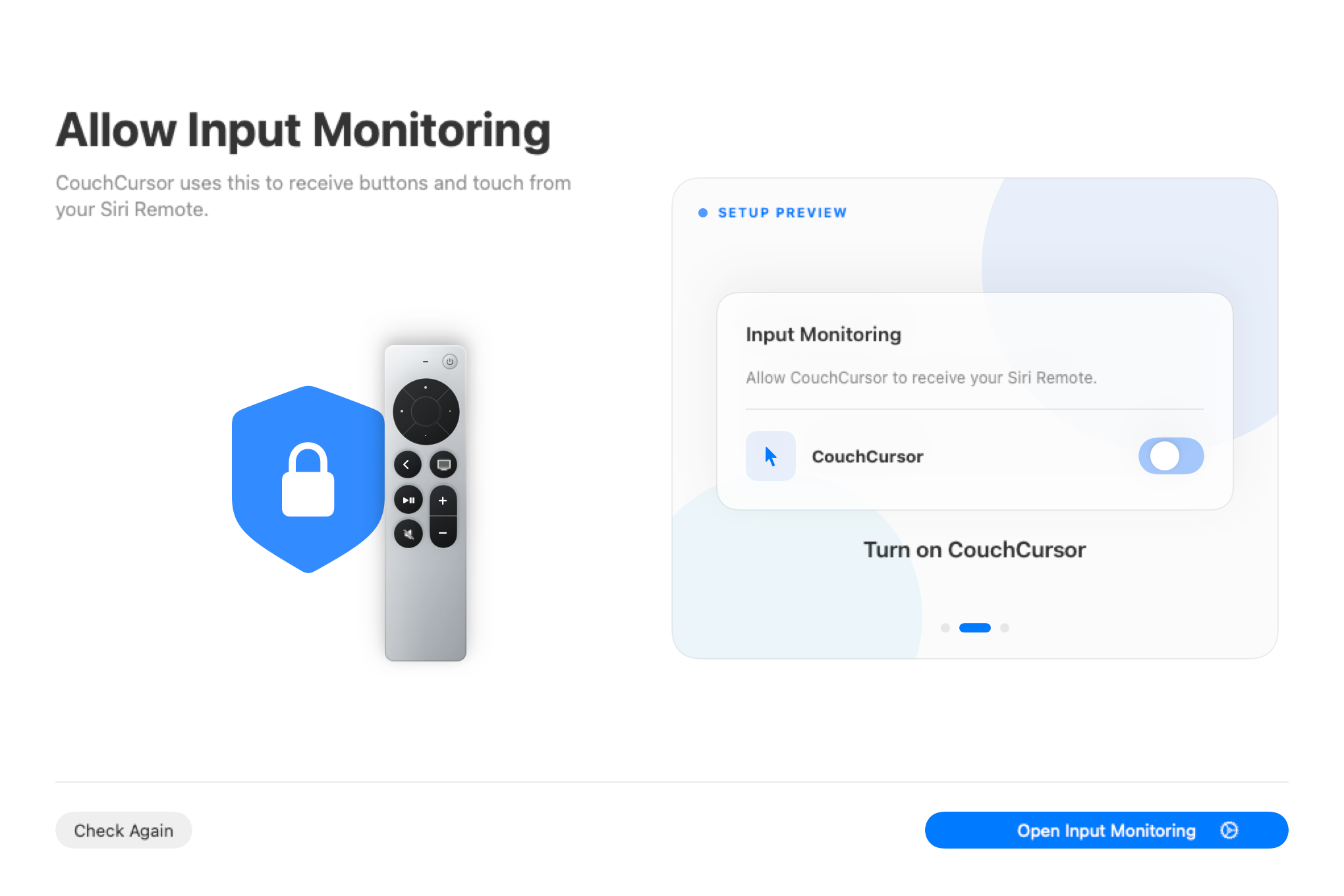
Input Monitoring
Lets CouchCursor receive button presses and touch gestures from your Siri Remote.
- Open System Settings › Privacy & Security › Input Monitoring.
- Turn on CouchCursor.
- Reopen the app if macOS asks you to.
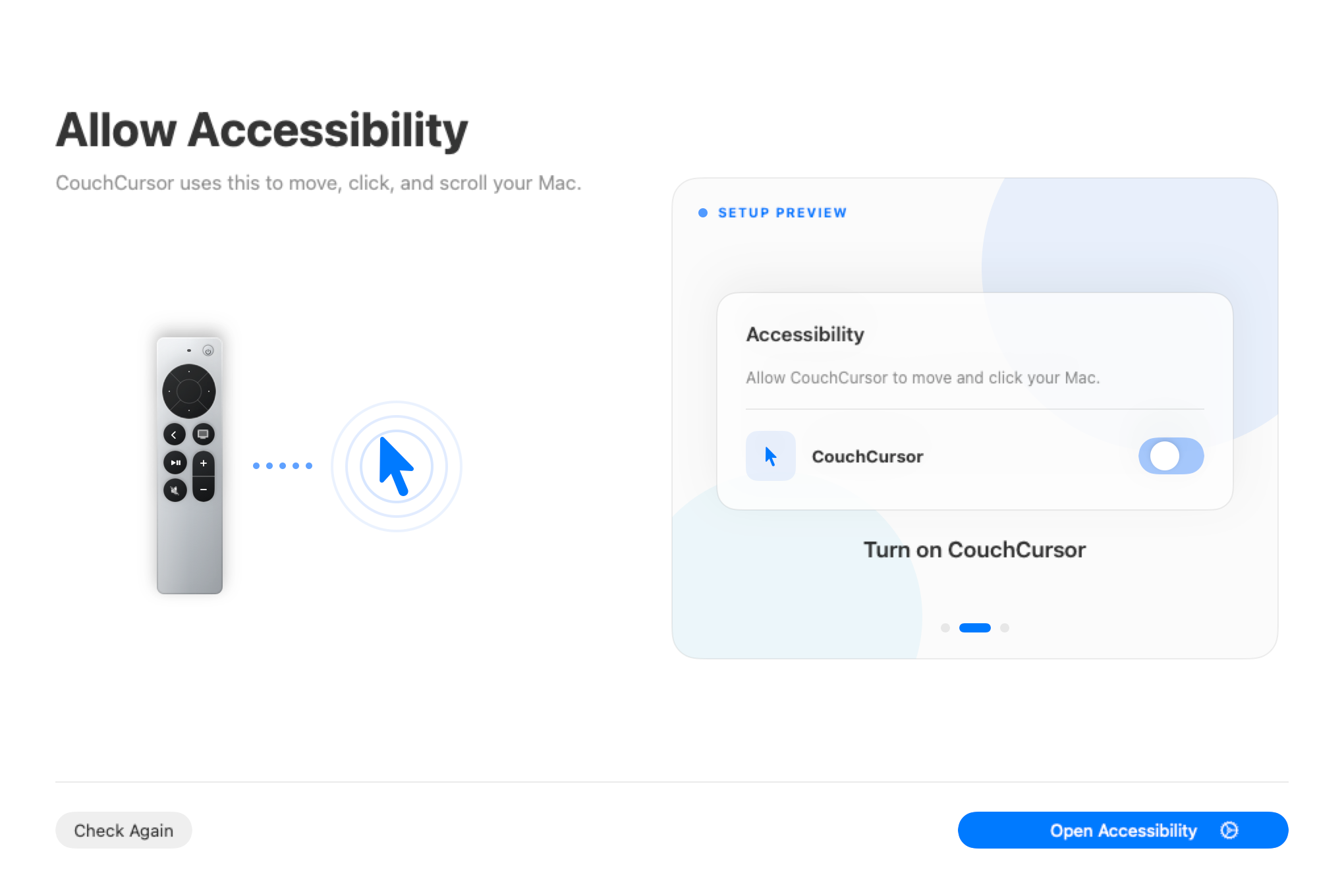
Accessibility
Lets CouchCursor move the pointer, click, drag, and scroll on your behalf.
- Open System Settings › Privacy & Security › Accessibility.
- Turn on CouchCursor.
- Return to the app to check the permission status.
You stay in control.
Remote input stays on your Mac. You can revoke either permission in System Settings whenever you choose.